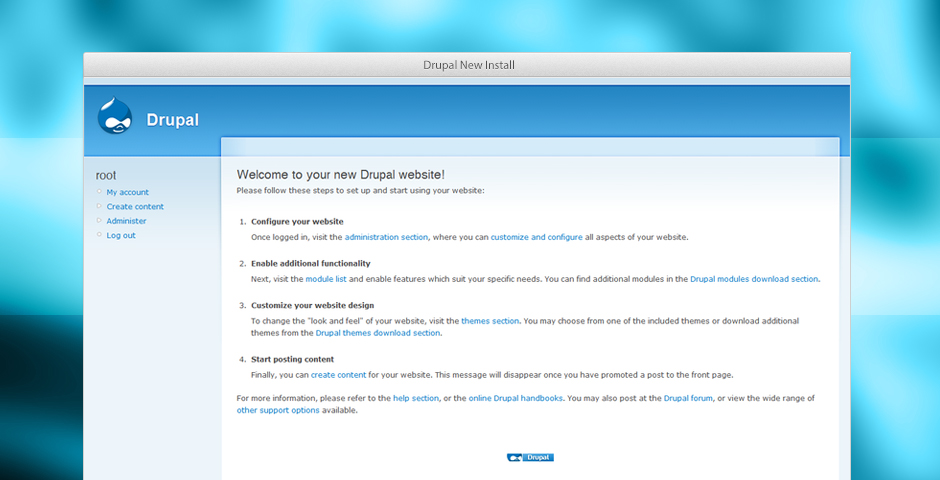
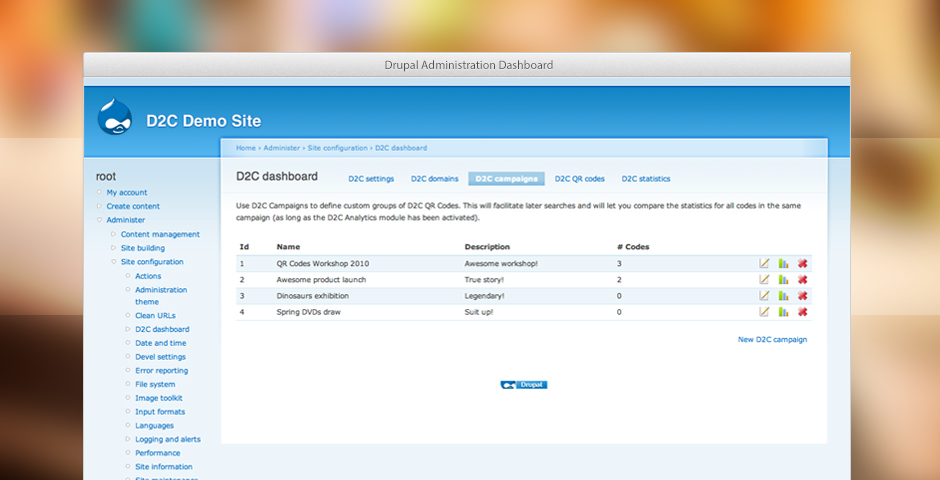
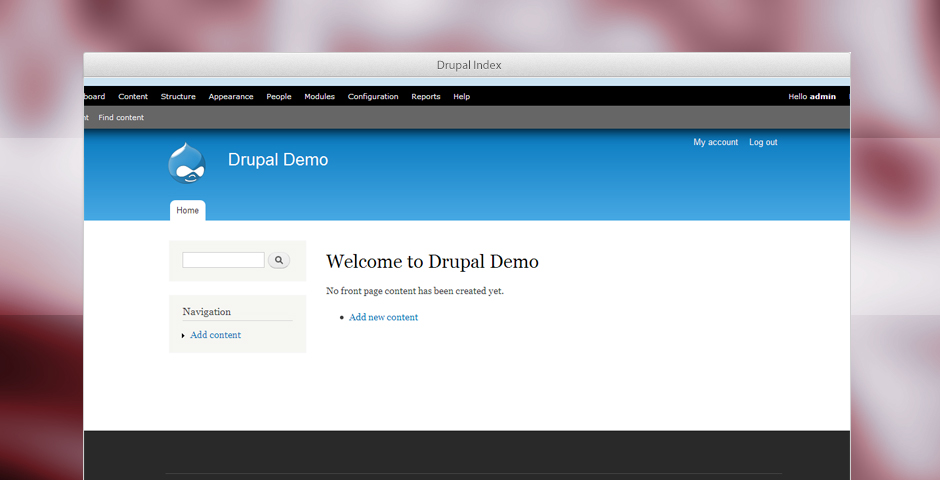
Drupal is a free, open source, software package that allows users to easily publish, manage and organize a wide variety of content on a website.
Thousands of people are now using drupal for a wide variety of websites including content management systems, blogs, collaborative authoring environments, forums, peer-to-peer networking, newsletters, podcasting, picture galleries, file uploads and downloads and more.
Drupal is open-source software and can be used and distributed freely
under the GPL ("GNU General Public License").
It is maintained and developed by a community of thousands of users and developers.
Drupal is ready to go from the moment you download it. It even has an easy-to-use web installer! The built-in functionality, combined with dozens of freely available add-on modules, makes it one of the most popular content management systems available.
There is a library of information on drupal.com including a forum at http://drupal.org/forum for drupal discussion. The forum includes details on installing drupal, upgrading drupal, post installation, converting an existing site to drupal and all the latest in module and theme developments. News, announcements, and drupal showcase are also available on the forum. Drupal also has a frequently asked questions section available on their website.
Yes you can view a working demo of drupal by visiting
Demo
Admin Demo Username - admin | Password - demo
Please note.Some options have been disabled for security reasons.
You need to signup with a domain name and web hosting.
Digital Pacific offers everything you need to run drupal including support, a mysql database, domain names and webhosting.
Please Note: These installation instructions only apply for web hosting with Digital Pacific.
Step 1
Download the latest release of the software from drupal.org.
Once the download has complete extract the files to your desktop.
Step 2
Go to filezilla-project.org and download the latest release of the software.
Install the filezilla ftp program on your computer. This program will enable you to upload these files to your web server.
Step 3
Open filezilla and login to your hosting account.
Host: www.yoursite.com.au
Username: username@yoursite.com.au
Password: Would have been sent to you via email from digital pacific.
Once you have entered your login information into filezilla click the quick connect button.
If you have trouble connecting to your server then check the host, username and password information you have entered are correct.
Step 4
Upload all files into your mainwebsite_html folder.
Step 5
Login to your ensim control panel www.yoursite.com.au/admin and create a new mysql database.
Video Tutorial: create a new mysql database tutorial.
Step 6
The instructions from drupal will now guide you through the rest of the installation process.
You will find these instructions in the drupal files under install.txt